![FrankCrum_PEO_White_Web.png]](https://www.frankcrum.com/hs-fs/hubfs/FrankCrum_PEO_White_Web.png?height=50&name=FrankCrum_PEO_White_Web.png)
- Visit mfc.frankcrum.com to log in.
- From the Employer Dashboard, select Benefits from the left navigation menu.

- This will open the Benefits portal in a new browser tab. Your administrator dashboard will appear automatically.
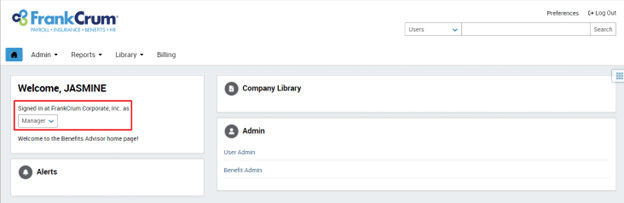
- Click on Admin from the menu options.
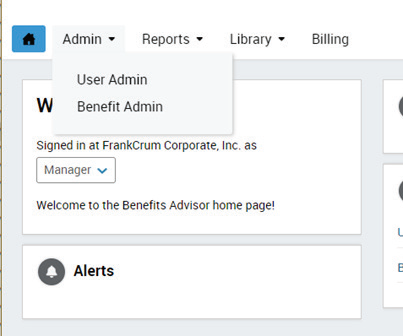
- If you click on User Admin, you will be routed to view a listing of your employees under your organization(s).
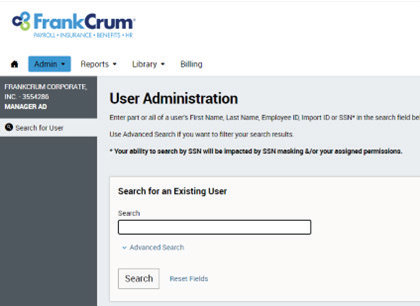
- In the search bar, you may search by employee name or social security number. Type in either value, then click SEARCH.
Note: You may also leave the field BLANK to view a listing of all employees.
- Your employee listing will appear automatically based on search parameters entered in the search field.
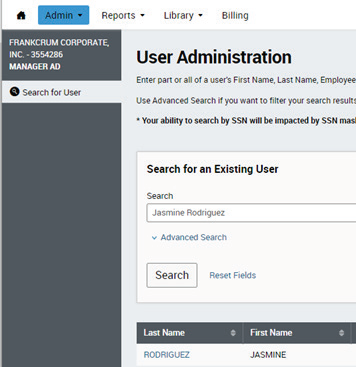
- Click on the last name of the employee to enter their employee/user information profile.
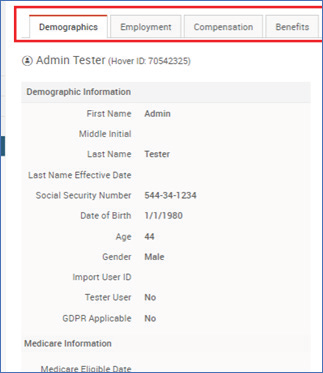
- From this profile page, you can view the same employee demographics that are currently stored in MyFrankCrum.
Note: Edits to these fields are not allowable within the benefit admin portal.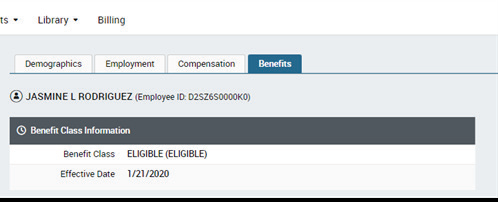
- Click on Benefits to view the employees assigned benefit class and effective date.
Note: To view benefit coverages, please see the how-to-guide labeled Viewing Benefit Coverages.